
General
Use the Settings area to set up API keys, metadata and more.
To access settings for your Superwall account, click the Settings button in the sidebar:
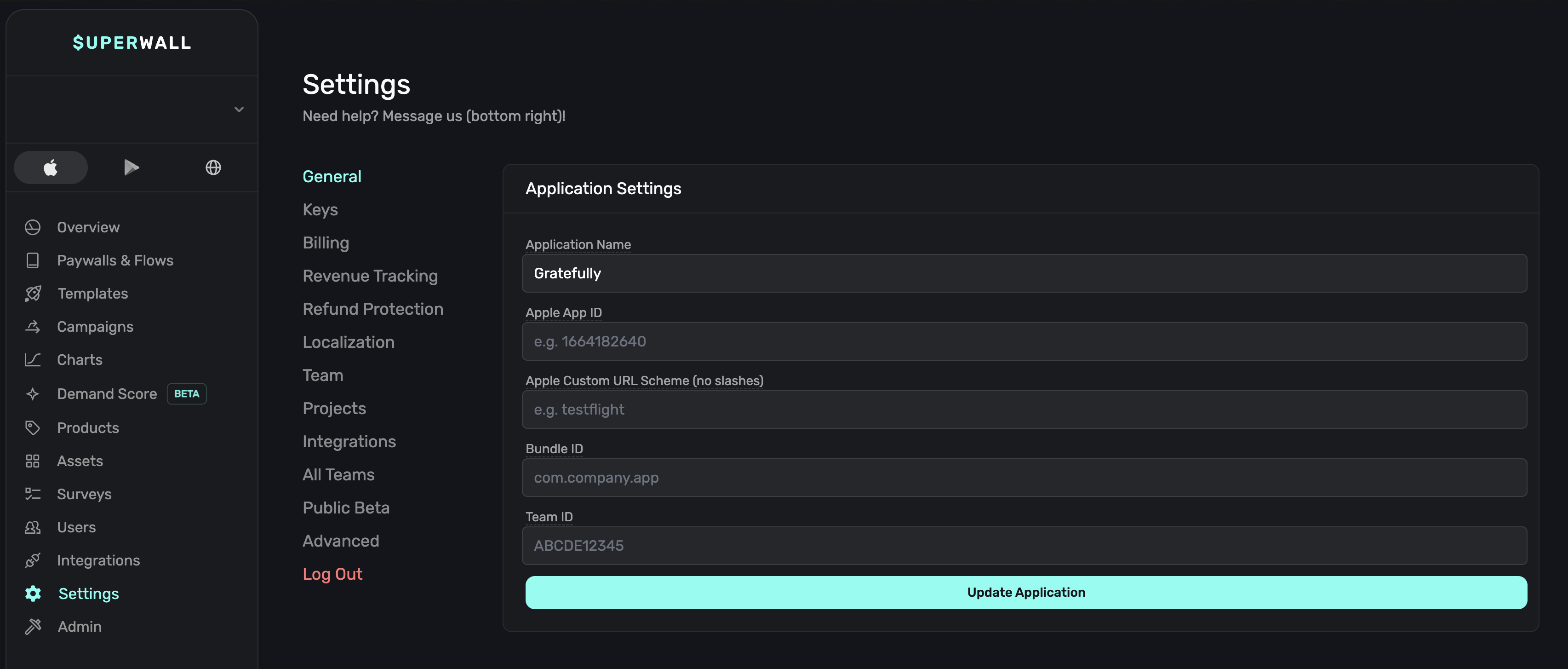
Under the General section, you can set or edit metadata and some integration API keys for your app:
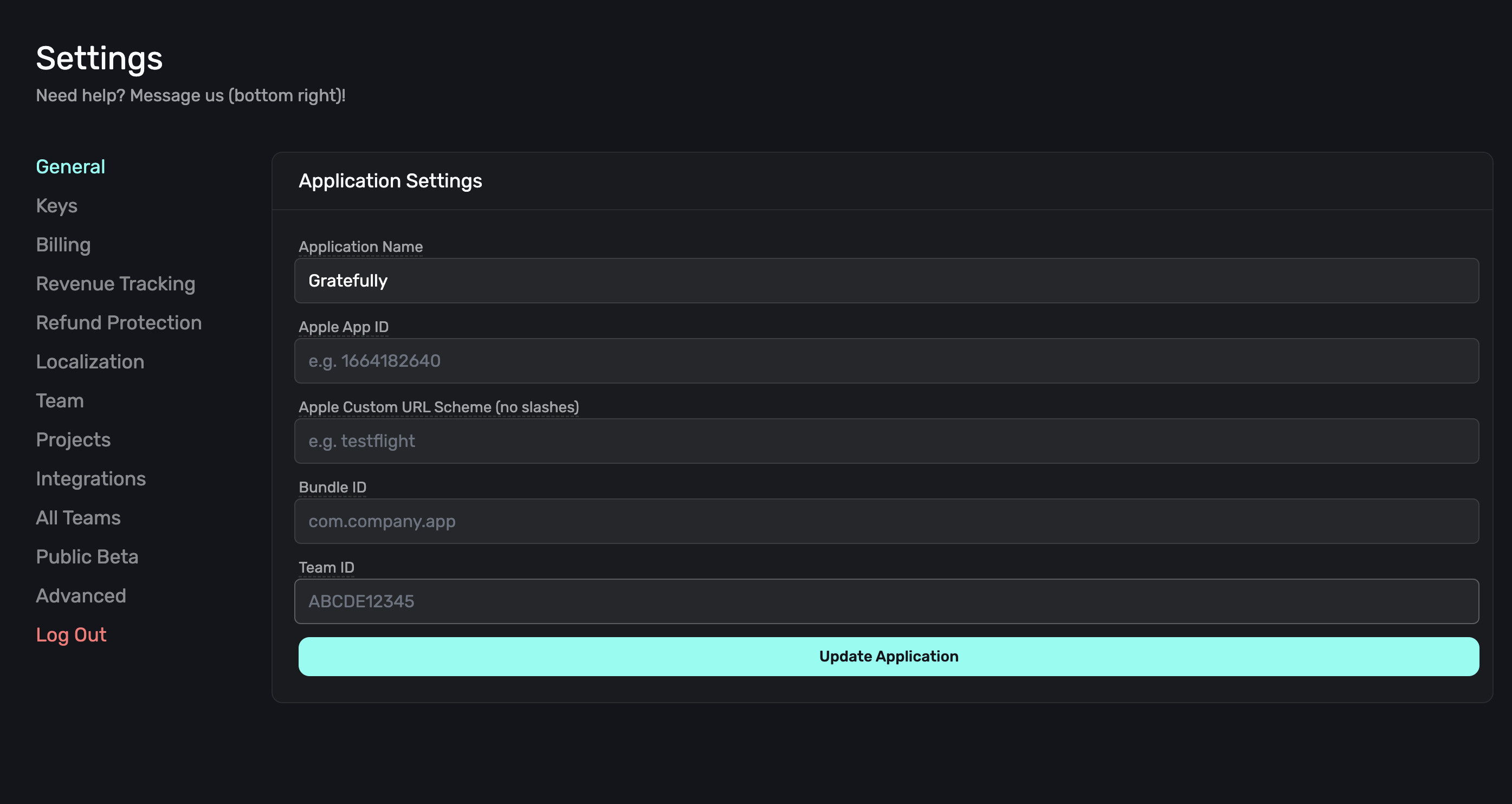
Some sections will hide or show depending on the platform your app is on. For example, for an Android app, Superwall will hide Apple-specific items.
Name
The name for your application in Superwall. This isn't user-facing and only used within Superwall. You can change it anytime.
Apple App ID
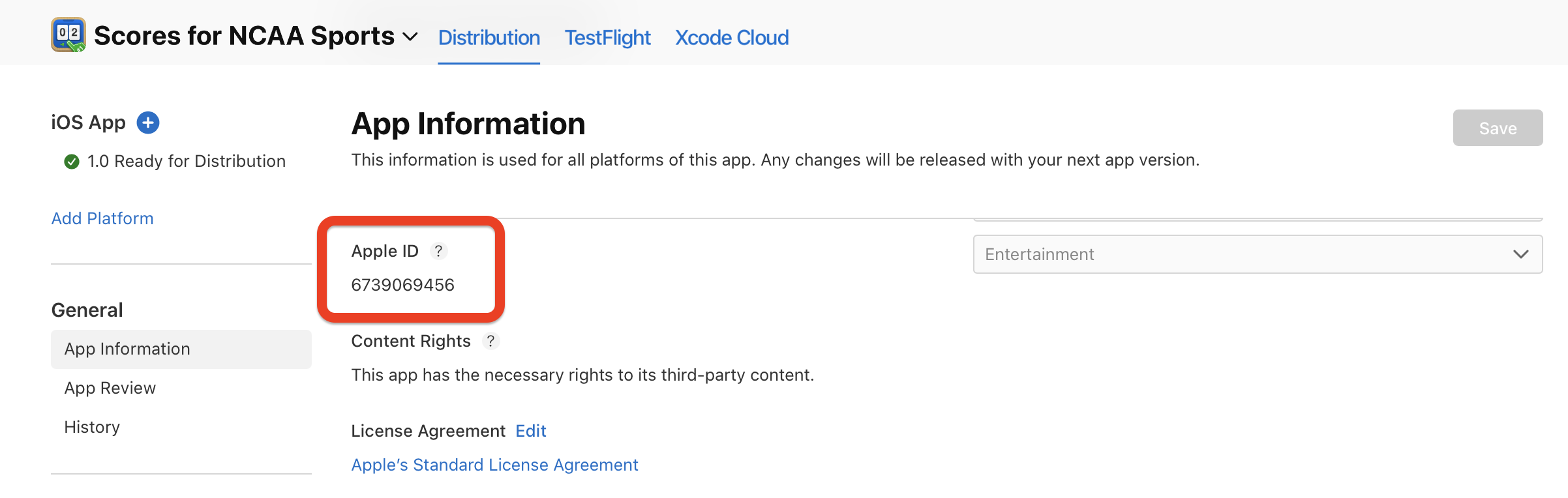
Fill in your app's Apple identifier here. You can find it by going to App Store Connect -> General -> App Information.
Bundle ID
Fill in your iOS app's bundle identifier exactly as it appears in App Store Connect or Xcode. Bundle IDs are case-sensitive, and the casing must match when configuring Apple keys such as your In-App Purchase configuration.
Apple Custom URL Scheme
We use URL schemes to perform deep link logic and for in-app previews of paywalls for iOS apps. To learn more about setting up deep links, visit this doc.
Application settings
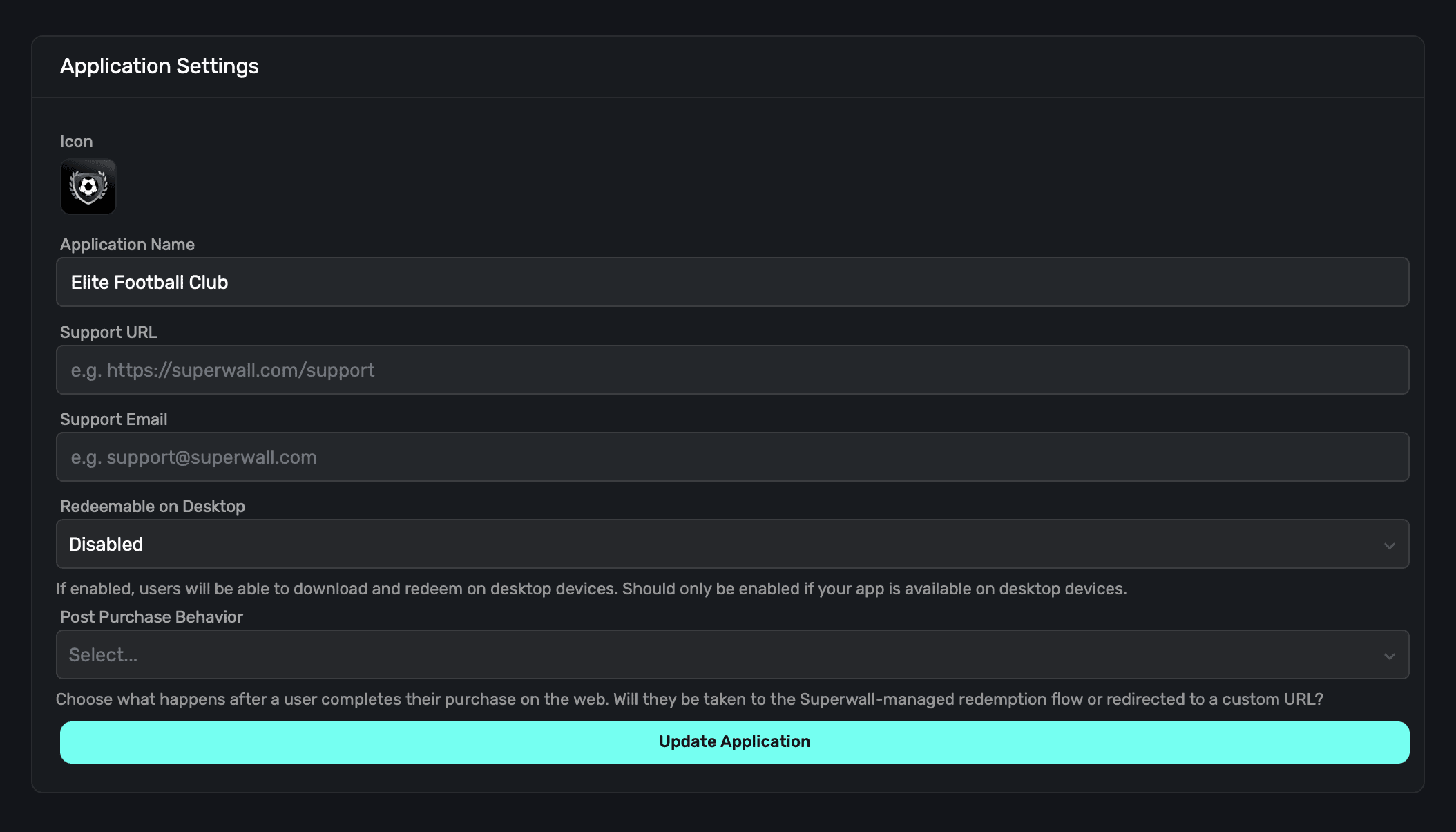
Here, you can enter metadata about your iOS app that corresponds to your Stripe integration.
-
Icon: An icon to represent your app, we recommend using the same one that your iOS app does. This will appear on the checkout and subscription management pages.
-
Web Paywall Domain: The domain your paywalls will be shown from. This was set when the Stripe app was created, and cannot be changed.
-
Application Name: The name of your app, we recommend using the same name as your iOS app.
-
Support URL: A URL to your support page. This will be shown on the checkout and subscription management pages.
-
Support Email: An email you provide customers for support questions and general reach out
-
Redeemable on Desktop: If your app is an iPad app on Mac, enable this option so that users can redeem products on their Mac. If you aren't using iPads Apps on the Mac, you can disable this. If this is disabled, Superwall enforces redemption on an iOS device.
Stripe Live Configuration
This section allows you to connect Stripe keys with Superwall. You will need a:
- Publishable Key: A Stripe publishable key. Stripe creates this key for you, you don't need to generate it yourself.
- Secret Key: A Stripe secret key that you create. Once you've made one, paste it here.
You can find these keys in your Stripe account. If you need help getting set up, check out the docs here.
Stripe Sandbox Configuration
The sandbox configuration allows you to test purchasing flows with your web checkout integration. If you need to find these keys, you can find them in your Stripe account.
- Publishable Key: A Stripe publishable key. Stripe creates this key for you, you don't need to generate it yourself.
- Secret Key: A Stripe secret key that you create. Once you've made one, paste it here.
iOS configuration
This section has critical information for your iOS app. Without it, web checkout won't work.
- Apple Custom URL Scheme (no slashes): Your custom URL scheme. If you haven't set this up, view the documentation.
- Apple App ID: Your app's Apple ID. You can find this in App Store Connect -> General -> App Information.
How is this guide?